Ayfie Application
13.02.26
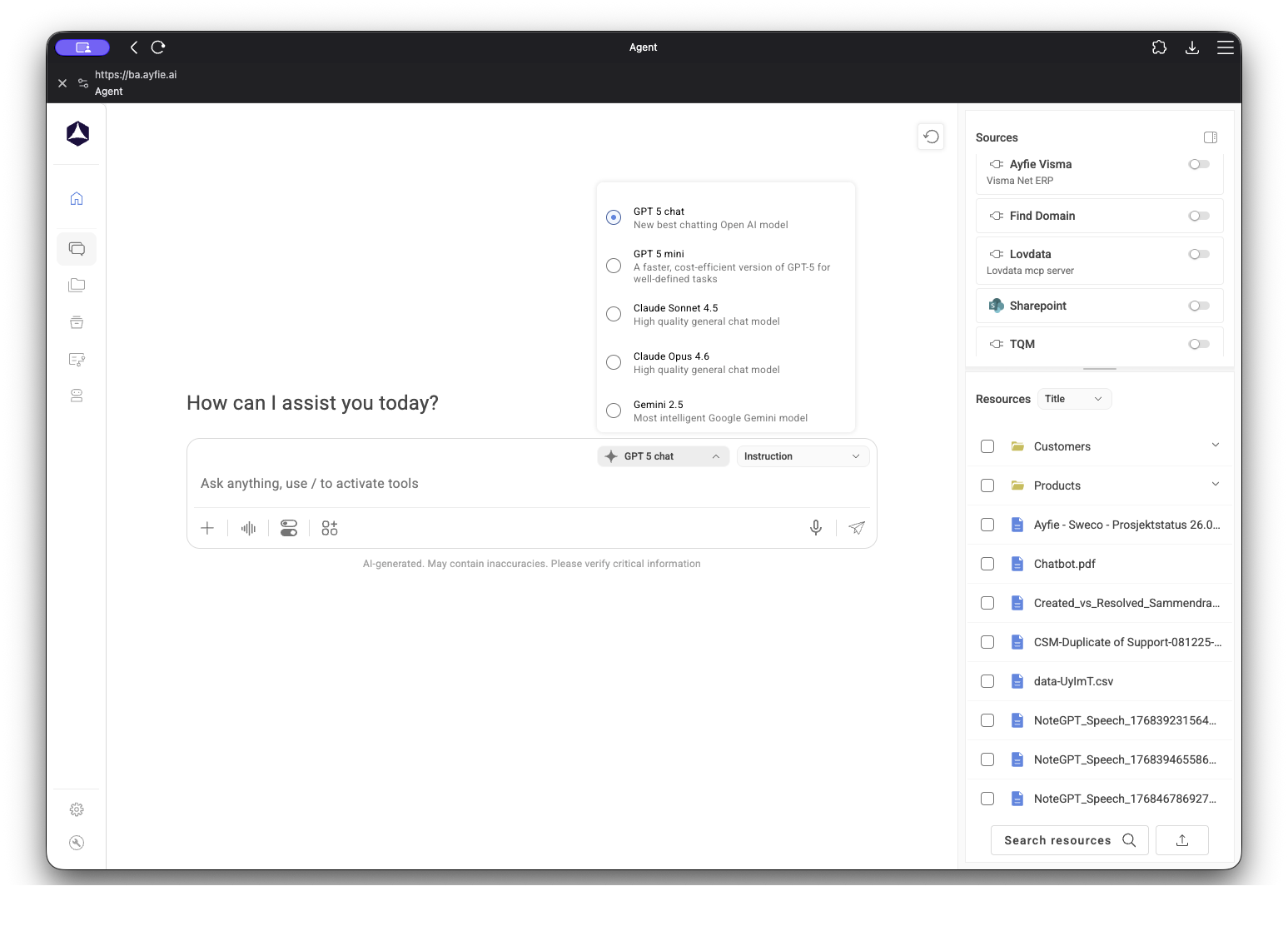
With how many tabs and browser windows that the average office worker have open today, it is completely normal to get confused and lose track of the agent. You might also open up multiple windows of the agent and can't find your way back to the window that you were just working on. Not all of us have multiple screens or manage to keep track of everything... And that is fully understandable. That's why you can download the Ayfie Business Agent as an application on your PC! Let us show you how..
Requirements
Required tools and accesses
| Browser |
Google Chrome, Microsoft Edge, Brave, Opera, Mozilla Firefox & Safari |
| Ayfie Business Agent |
Requires active license |
| Not Included in |
Index directly, but supports Index source in Agent |
Core Capabilities
-
Functions
Your application comes with all the same functions as the website or domain itself, its just locally installed and easier to keep track of
-
Sources:
All your included and installed sources functions the same, no limits on what you can do on the app vs web
-
Continuous Update
The application is based on the website, so you can refresh and update it any time you need to
Installing it
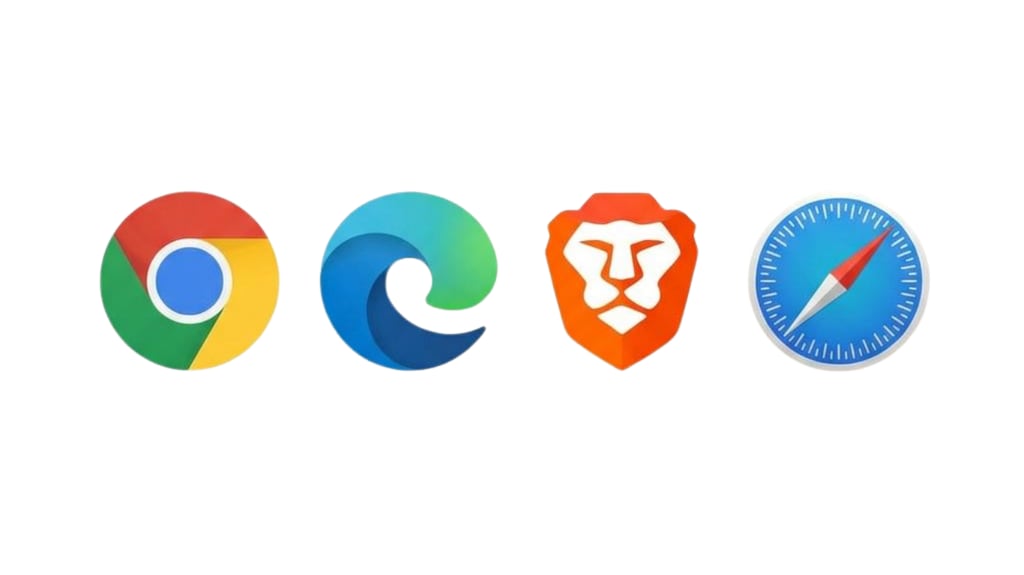
Browser Selection
Find the browser that you wish the Agent to be downloaded and based from
Install Instructions
Follow the instructions based on the browser that you've selected:
| Chrome |
Edge |
Brave |
Safari |
- Visit the website you want to install.
- Look for the "Install" icon (a monitor with a down arrow) on the right side of the address bar.
- If you don’t see it, click the three dots (⋮) menu in the top-right corner, and select Save and share > Install [site].
- Click "Install."
- The website will now open in its own window like an app.
|
- Open the website you wish to install.
- Click the "App available" icon (a small "+" in a circle) on the right side of the address bar.
- Or click the three dots (...) in the top-right, select Apps > Install this site as an app.
- Click "Install."
- The website opens as an app with its own window.
|
- Navigate to the website you want to install.
- Look for the "Install" icon on the right side of the address bar.
- If missing, click the three lines (≡) menu, select Install App....
- Click "Install."
- The site will run as its own application window.
|
- Go to the website in Safari.
- Click File in the menu bar, then select Add to Dock....
- Or, use Share button > Add to Dock.
- Name the app if prompted and click Add.
- The site appears in your Dock as an app.
|
|
✅ Permissions:
When first opening, allow any requested permissions for full functionality.
|
✅ Permissions:
Allow notifications or other prompts as needed after installation.
|
✅ Permissions:
Grant any permission prompts requested after installation.
|
✅ Permission:
First time opening, allow notifications or requested access for the best experience.
|
Final product:
As for the finalized solution, this is what you'll be able to access and can always be found on your taskbar at the bottom of your screen at any time. It is also supported to be used in some mobile applications, but we recommend using it on your PC.