

Creating new Chatbots
Setup
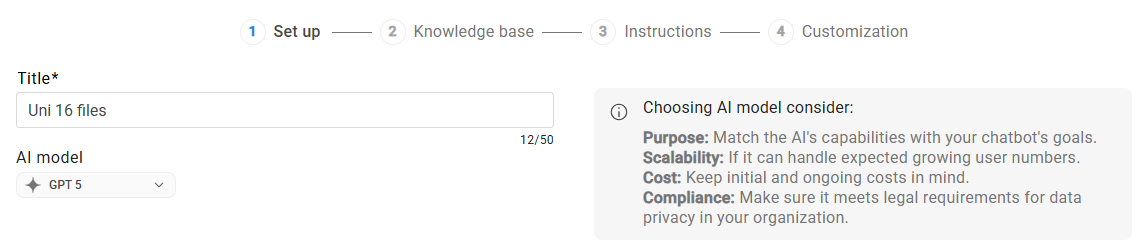
Name the Chatbot and select the model it should use when replying.
Knowledge base
Choose if you want to either:
-
Upload all necessary files
or
-
Use a Connector / Source to internal/external systems

Files Knowledge Base
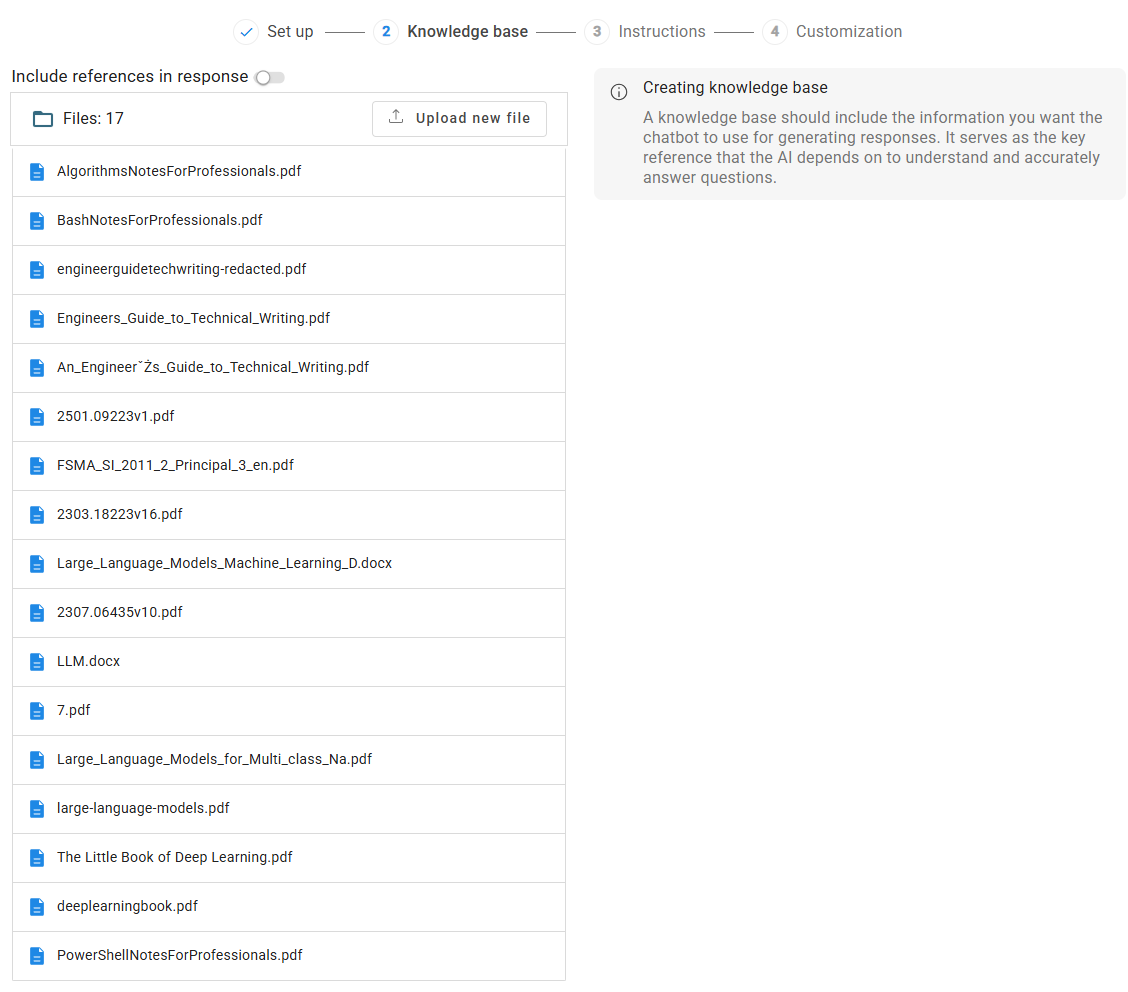
Upload one or more documents the Chatbot will use as its main source of knowledge. You can also choose whether to show the documents used to generate each response.
MCP Knowledge Base
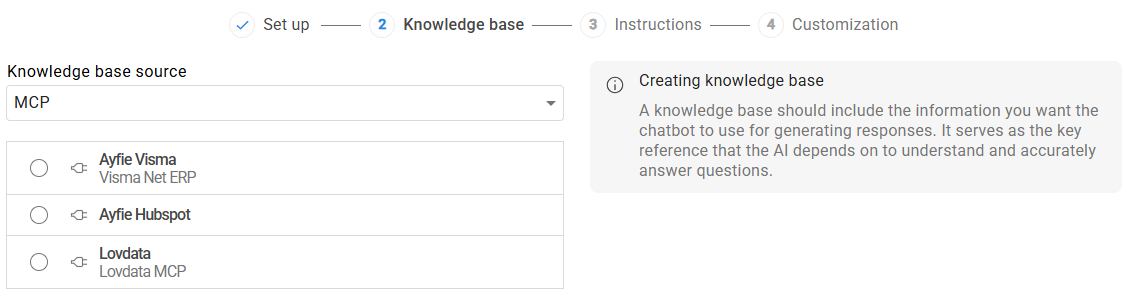
Select one of the configured Connectors/Sources to serve as the Chatbot’s source of knowledge.
Instructions
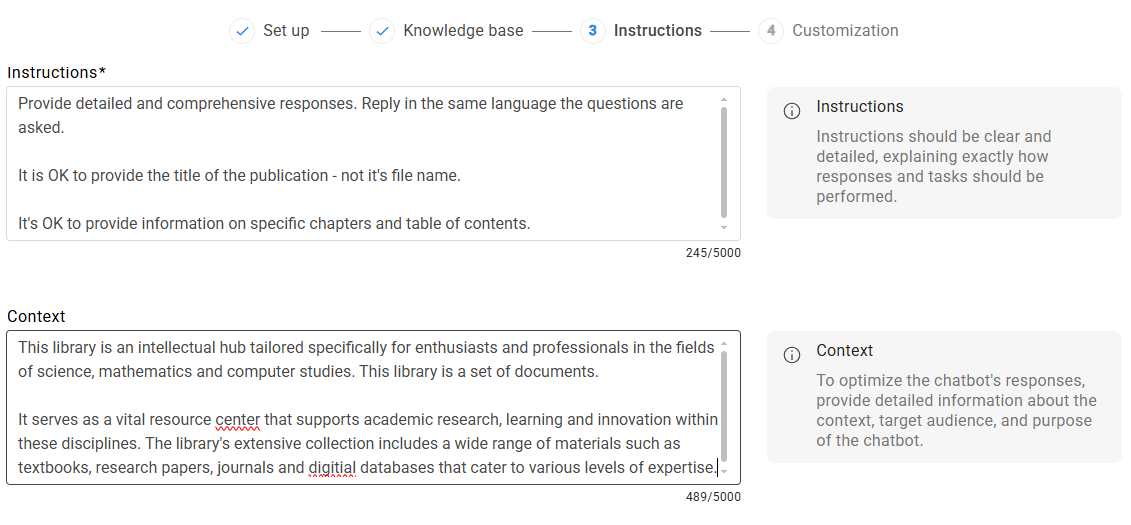
Define how the Chatbot should behave (tone, role, level of detail) and any rules its responses should follow.
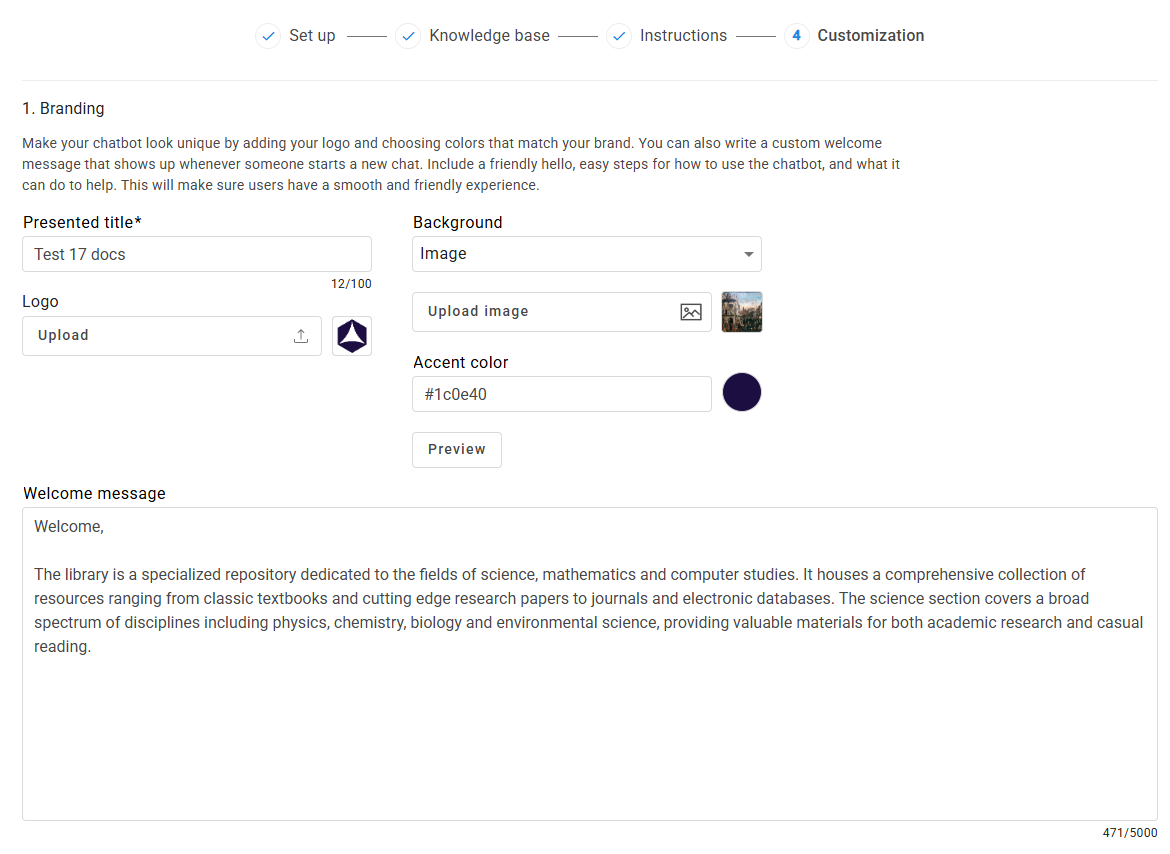
Customization
Adjust the Chatbot’s appearance (title, logo, background image, accent color).
Publishing Chatbots
Chatbots can have three different publication states:
-
Draft: Only available to users with elevated roles (
adminorchatbot_manager- see Agent - Roles and Permissions ) -
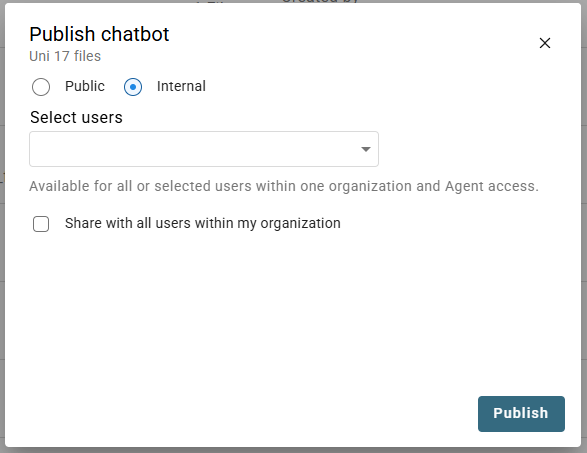
Internal: Available only to users in your organization. Access can be restricted to selected users or shared with the whole organization.
-
Public: Available to all users in your organization and accessible via a dedicated URL.
A newly created Chatbot begins in Draft state and must be published before it is available to regular users.

After clicking the Publish button you can choose the publication options:
Chatbot properties
Each Chatbot on the list has a menu button that expands the following options:
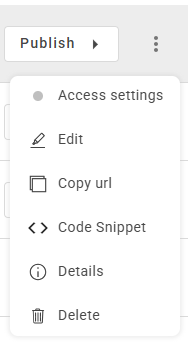
Access settings: Allows you to change the Chatbot’s publishing settings or unpublish it back to Draft state.
Edit: Change the Chatbot’s configuration.
Editing a Chatbot automatically unpublishes it by setting publication state back to Draft.
Copy URL: Copy a direct link to the Chatbot.
Code Snippet: Generates a JavaScript code snippet used for external integration - see Agent - Chatbots & Multi Chatbots Integration.
Details: Show when the Chatbot was created and modified, the size of its knowledge base, and usage statistics for the last 7 and 30 days.
-
Delete: Remove the Chatbot.
Deleting a Chatbot is irreversible.