How to setup Sources
03.02.26
This article explains the key functions of Chatting with Different Sources. It covers setup, source selection, and querying to get insights from different data sources. Switching between sources transforms the same question into multiple perspectives tailored to your needs and allows you to cooperate with the Agent making sure you have the right information at the right time.
Value of Multi-Source Chatting
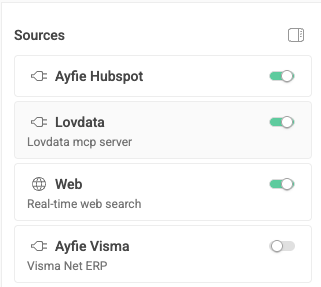
Each source answers from a different knowledge base, providing distinct advantages:
- Web: Broad context, external validation, and general best practices. Useful for understanding common approaches and industry-standard solutions.
- Outlook: Insights from communications and scheduling patterns. Reveals stakeholder priorities, meeting outcomes, and collaboration trends within your organization.
- OneDrive: Analysis based on your stored documents and files. Accesses reports, presentations, and internal documentation for organization-specific context.
- Lovdata: Legal precedents and regulatory information. Provides authoritative legal framework and compliance requirements.
- Sharepoint: Connect all your stored information that you already have organized and documented online directly into the agent and communicate with them
- Index: If you also have the Index offering from us, you can activate it in the Agent and communicate with everything you've organized and uploaded
- Custom Sources (Internal Systems): Create your own source with your internal systems, such as Acos, Salesforce, Google Drive, Dropbox, Confluence, Notion. All you need is the support for API-Keys and we can assist creating this source for you.
Visual Guide on using Sources
Why Multi-Source Matters:
Contextual Accuracy:
Internal sources ground answers in your actual data rather than generic assumptions, increasing relevance and precision.
Comprehensive Perspective:
Combining external knowledge with internal reality creates a complete picture—what's theoretically possible versus what your data supports.
Validation and Discovery:
Cross-referencing sources helps verify information, uncover discrepancies, and identify opportunities or risks invisible from a single viewpoint.
Efficiency:
Access multiple knowledge bases through one interface without switching between separate tools or platforms.
Decision Confidence:
Comparing responses side-by-side exposes gaps between general advice and your specific situation, leading to better-informed choices.
The following extensions are supported in SaaS and when integrated with Index. The Azure Marketplace version of Agent is more limited due to restrictions on Document Intelligence: